
Best PC for Virtual Machines
How to choose a POWERFUL Pre-built PC for your VM lab environment…
You might not know it, but there are top brand PCs great for running multiple virtual machines, and there are duds!
We’ll avoid the duds and focus on the best desktops and laptops that can run your virtual machines easily.
In this VMinstall guide, we’ll show you what you’ll need to know before buying a PC for running virtual machines.
What’s Your Use Case?
We all want a Powerful PC with lots of memory and SSD storage space, but there’s more to high performing VM host than a cool case or brand logo.
In a minute, we’ll dive into the juicy technical details and best practices, but first, let’s start with an important question before we look at the best computer for virtualization.
What do you intend to do with the VMs running on your new system?
- Maybe you’re building a virtual test lab and plan to just mess around with different virtual machine software for work.
- Maybe you’re a developer and need various test VMs set up to test your code while you are working out the bugs.
- Or, maybe you’re like me and do a lot of training and need to install different software packages. I always have VMs running in my virtual test lab for something.
This guide will help you decide which options and configurations to consider for your virtual machine use case.
If I missed your use case, please leave a comment or question below.
Buyer’s Guide for the Best PC for Virtual Machines
Look, depending on your use case, the configuration for the best way to run multiple virtual machines follows some basic best practices:
- CPUs with faster (GHz) and more CPU cores – Faster CPUs are a must-have, but also you want to slice up your cores so that you’re allowing enough cycles per core, so you don’t oversubscribe the clocks and cause the CPU to wait. CPUs with 6 – 8 cores can be carved up into VMs with 2 – 4 vCPUs. For best performance, keep your CPU to vCPU ratio at 1:1. This means each physical CPU core can support 1 vCPUs at most. For example, a 6 core CPU can support 3 VMs with 2 vCPUs each or 2 VMs with 3 vCPUs.
- Lots of fast memory (16 GB or more) – Memory is cheap, so more is always better. I also keep memory at a 1:1 ratio for physical to virtual memory. However, as a best practice, I reserve half my memory for my main system OS. So a PC with 16GB has 8GB available for the main PC hosting the VMs and 8GB to be shared with the VMs. Based on a PC with a 6 core CPU and 16GB of memory, you can get 2 VMs with 3 vCPUs and 4GB of memory. Obviously, you can assign more memory if you oversubscribe, but performance will degrade quickly. It really does matter what you plan to do with your VMs. If you have 32GB, you can reserve 8GB for the main system and use 24GB to assign to VMs.
- NVMe SSD or ATA SSD (Dedicated 500 GB – 1 TB of space) – If you need speed, don’t run your VMs on your main PC storage. Buy a dedicated SSD for your VMs. Disk IO is tricky and can impact the performance of even the best PCs negatively when running multiple virtual machines. You don’t want to create a bottleneck for disk reads and writes. With one drive, everything is sharing the same read/write path with the storage controller. NVMe’s are best, but the new ATA SSDs also smoke. Another benefit you get when putting your VMs on a separate SSD is that VM files and directories are easier to track when you need to clone or move your virtual machines around.
Make sure you have plenty of room for growth.
Your new system for hosting virtual machines needs to be able to expand. Later you will want to add upgraded WIFI adapters, network cards, graphics cards, memory, SSDs, NVMe storage, CPUs, and USB devices.
Be aware that motherboards have limited amounts of PCIe, ATA, NVMe, and memory slots.
Planning ahead will make your virtual machine lab more expandable later, especially if you are building virtual machines for business use cases that rely on keeping up with new software requirements.
The best desktop for running virtual machines can keep expanding if needed – conder a minimum of 3 PCIe slots, 4 memory slots, 2 NVMe slots, and 4-6 ATA connectors.
That said, there is no one-size-fits-all answer for the best PC for virtual machines. It depends on your specific needs and what you plan to use your virtual machines for. These are my general tips that can help you choose the right system for your needs.
The Best PC for Virtual Machines – 3 Alternatives for Windows & Mac Users
Important: Regardless of which PC brand you decide to choose, the key is to make sure it has the ability to run virtual machines.
There is a setting in the BIOS that must be enabled for virtualization to work. This is a must-have for the best desktops or laptops running virtual machines. Most new motherboards have it enabled by default, but some might not make it available.
Major Brand Desktops – Alternative #1
Please read the reviews and compare the technical specification for yourself before making a purchase of any of these systems.
My Best Pick
Dell XPS Desktop – All Use Cases
The Dell XPS Desktop is the most versatile best-in-class desktop. Highly customizable.
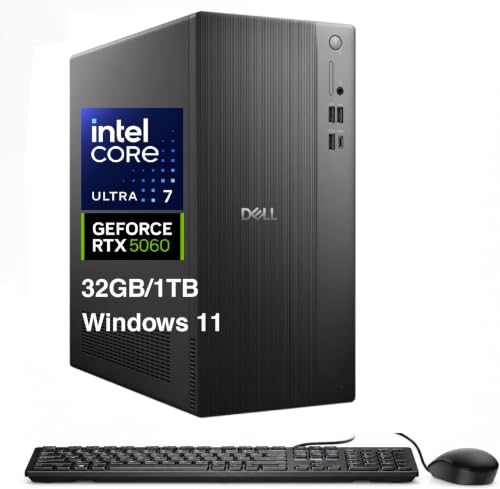
- [Superior Machine] ; 802.11ax Wifi, Bluetooth 5.4, RJ-45, No, USB Keyboard, USB Mouse
- [Powerful Performance] 15th Gen Ultra 7 265F 2.40GHz Processor (upto 5.3 GHz, 30MB Cache, 20-Cores, 20-Threads, 8 Performance-cores); GeForce RTX 5060 8GB GDDR7 Dedicated Graphics
- [High Speed and Multitasking] 32GB DDR5 DIMM; 360W PSU; Black Color
- [Enormous Storage] 1TB 2230 PCIe NVMe SSD; 4 USB 2.0, HDMI, 3 Display Port, USB 3.2 Type-C, SD Reader, Headphone/Microphone Combo Jack
- Windows 11 Pro-64,
Runner-ups for Business Use
Lenovo ThinkCentre V50s Desktop – 1st Runner-up Better Choice
The Lenovo ThinkStation is best for serious gamers or graphic designers.
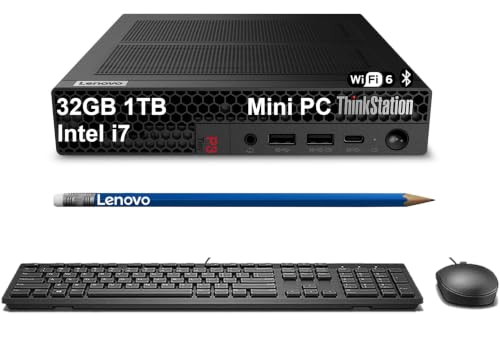
- TINY YET POWERFUL - Part of Lenovo's Tiny portfolio, the ThinkStation P3 Tiny delivers workstation-class performance beyond the ThinkCentre M70q, M80q, and M90q. As a replace (12TD001UUS) upgrade, its ultra-compact 3.01 lb design is up to 96% smaller than a traditional desktop while helping optimize valuable workspace without compromising performance or reliability. Built to meet military-grade durability standards and ISV-certified for AutoCAD, SOLIDWORKS, ArcGIS, Creo, and MATLAB, the P3 Tiny provides stability, compatibility, and performance professionals depend on for mission-critical workloads
- HIGH PERFORMANCE - Featuring the Intel Core i7-14700 processor paired with Intel UHD Graphics 770, this system delivers exceptional speed and responsiveness for multitasking and graphics-intensive business applications. Equipped with 32GB DDR5 RAM and 1TB SSD, it ensures smooth performance, accelerated data access, and efficient workflow execution for demanding daily tasks
- RICH CONNECTIVITY - Stay connected with six USB-A ports, one USB-C port, HDMI 2.1, DisplayPort 1.4, Ethernet, and an audio combo jack, this desktop easily connects to your essential devices and peripherals. Native dual-display support with up to 8K@60Hz via DisplayPort 1.4 and 4K@60Hz via HDMI 2.1 for an expanded workspace. Built-in Wi-Fi 6 and Bluetooth 5.1 provide fast, reliable wireless connectivity, while the included full-size USB keyboard with numeric keypad and USB mouse help maximize productivity
- OPERATING SYSTEM - Windows 11 Pro with Copilot AI enables AI‑assisted productivity across business applications, supporting task organization, information retrieval, and collaboration. Built‑in security protections and enterprise‑grade management features help safeguard data, enforce policies, and simplify system administration, delivering a stable and secure operating environment for professional computing
- BUILT FOR MODERN PROFESSIONAL USE - Designed for engineers, architects, designers, developers, and business professionals, the Lenovo ThinkStation P3 Tiny excels in CAD design, 3D modeling, data analysis, content creation, and multi-display productivity. Its compact footprint and dependable performance make it an excellent fit for engineering firms, corporate offices, STEM education, financial services, and modern hybrid workspaces
HP Envy Desktop – 2nd Runner-up Good Choice
Bring your data center home. The Pavilion Desktop features extraordinary processing power, graphics, and storage at an affordable price for personal use.

- Powered by the fastest and most powerful Intel 10-core i5-14400 processor (base clock 2.5 GHz, max boost up to 4.7 GHz, 20 MB smart cache, 16 threads; 6 performance cores + 4 efficient cores)
- NVIDIA GeForce RTX 4060 with 8 GB dedicated graphics
- Equipped with a full range of connectivity options: 1 HDMI, 1 VGA, 1 USB-C 3.2 (5 Gbps signaling rate), 4 USB-A 3.2, 4 USB 2.0, 1 RJ45 Ethernet, and a media card reader — ideal for multitasking across monitors, peripherals, and external storage
- Pre-installed with Microsoft Windows 11 Home, plus built-in Wi-Fi 6 for fast wireless networking and 5.1 surround sound for an immersive audio experience
- Perfect for demanding workflows like gaming, content creation, or office productivity, where raw processing power and smooth graphics are essential
Runner-up for Home Use
Asus ROG Strix Desktop – 1st Runner-up Better Choice
Features extraordinary processing power, graphics, and storage that is usually much more expensive. For the best performance, this ASUS Desktop PC will give you everything you need to run your virtual machine lab with ease.
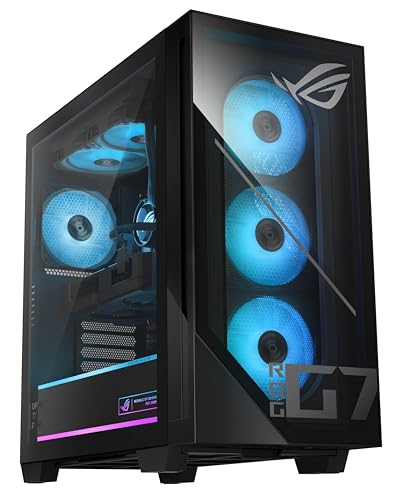
- Fearless ROG Design – The GM700’s dual-glass chassis showcases iconic ROG design with the ROG Slash and Aura Sync RGB lighting. Its 58L capacity supports triple-slot GPUs.
- Unstoppable Power – Equipped with the AMD Ryzen 7 9800X3D processor, NVIDIA GeForce RTX 5070 GPU, 32GB DDR5 RAM, and 1TB SSD PCIe 4.0 storage for seamless gaming and multitasking.
- Optimized Thermals – Stay cool with a quad-fan system and 240mm liquid cooler, while dust filters and efficient airflow ensure long-term reliability.
- Advanced Connectivity – Game without lag with Gigabit Ethernet, WiFi 6, and versatile ports. Dolby Atmos audio and AI noise cancellation enhance sound and communication.
- Ready for Upgrades – Designed with tool-less access, easily swap out components, ensuring future-proof performance for years to come.

Acer Nitro Desktop – 2nd Runner-up Good Choice
The Nitro is a great starter system with many growth options.
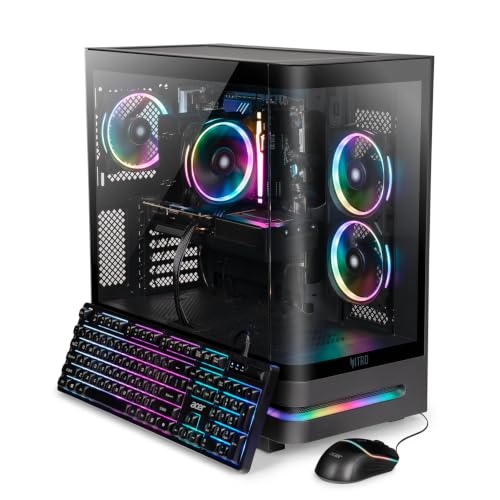
- Panoramic Perfection: The Nitro N85 removes the barrier between you and your build. Its specially curved glass panel flows from front to side, delivering a stunning panoramic view that makes components appear to float in mid-air. The result is a pure, uninterrupted showcase from every angle. It features Reverse-Ring ARGB fans that maintain a premium aesthetic by keeping vibrant light rings facing the glass rather than the brackets for a clean, high-end look
- Game Without Compromise: Intel Core Ultra 7 265F with 20 cores, 5.3GHz boost, dedicated NPU for AI tasks like background removal and auto framing. Game, stream, and create simultaneously without dropping a frame
- Game Changer: Powered by NVIDIA Blackwell, the GeForce RTX 5070 GPU delivers game-changing performance for gamers and creators. With a massive 988 AI TOPS, RTX 50 Series graphics unlock next-level visuals, faster creation, and entirely new experiences. Boost performance with NVIDIA DLSS 4, generate content at incredible speeds, and bring your ideas to life with NVIDIA Studio
- Supreme Speed and Superior Visuals Powered by AI: DLSS is a breakthrough suite of AI-driven rendering technologies that boosts FPS, reduces latency, and enhances image quality. With DLSS 4, experience new Multi Frame Generation along with improved Ray Reconstruction and Super Resolution powered by GeForce RTX 50 Series GPUs and fifth-generation Tensor Cores for smoother gameplay and jaw-dropping visuals
- Stay Fast and Stay Connected: The Nitro 85 keeps you in the game with high-speed Realtek Wi-Fi 7 and 2.5GbE LAN for low-latency play and lightning-quick downloads. Front-mounted USB 3.2 Type-C and Type-A ports let you plug in on the fly, while five rear USB ports handle all your connections and fast data transfers
DIY Home Lab Server
Custom Build a Home Lab Server – Alternative #2
Custom building your own virtual machine lab desktop is definitely not for everyone. But if you want total control, assembling a system from parts is the way to go.
Here’s a sneak peek of the computer parts you will need:
- Motherboard & CPU
- Memory (RAM)
- Storage (NVMe or ATA SSD)
- Case with a power supply
- Graphics card
- Keyboard and mouse
- WIFI network adapter
Building a home lab server for your own virtual machines can be a great way to learn about hardware and best practices for assembling a system from parts.
If you’re interested in this option but have no idea where or how to start building a home lab server on your own, we recommend checking out our starter guide, “How to build home lab server.”
The guide will show you everything you’ll need to consider before getting started. It also includes a list of components best suited for powering your virtual machines.
The Best Laptop for Running Virtual Machines (Windows/Mac Users) – Alternative #3
Just like with desktops, the recommended laptop for powering virtual machines is one that has at least an Intel Core i7 quad-core processor with 16 GB of RAM. Running virtual machines takes a lot of memory, so having at least 16 GB is the best practice. If you can get 32GB of RAM, that would be even better.
Where things get tricky is laptops aren’t as upgradeable. Some have 4 memory slots and an additional connection for a second ATA or NVMe SSD.
These are the best laptop computers for running VMware Workstation, Hyper-V, VirtualBox, and Parallels (if you have a Mac). But as with desktops, please read the reviews and compare the technical specification before purchasing any of these systems.
Laptop Options for Apple Users
First off, when you’re using a virtual machine for Windows 10 to do work at the office, you don’t want it to be sluggish. If your Guest OS runs slow, it isn’t worth using. Make sure you size your MacBook for the job to be done.
The best MacBooks for the virtualization of Windows 10 or Linux:
My Best Pick for Business Use
Apple MacBook Pro – Best Choice
Most Mac Power Users love this system. This MacBook is at the top of the list.
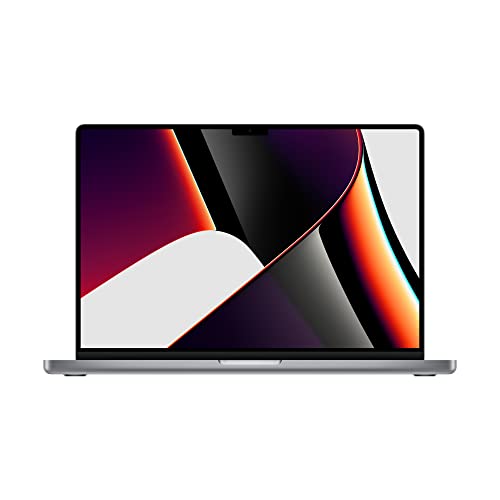
- Apple M1 Pro or M1 Max chip for a massive leap in CPU, GPU, and machine learning performance
- Up to 10-core CPU delivers up to 3.7x faster performance to fly through pro workflows quicker than ever
- 16-core Neural Engine for up to 11x faster machine learning performance - Up to 17 hour battery life
- Up to 32-core GPU with up to 13x faster performance for graphics-intensive apps and games
- 1080p FaceTime HD camera with advanced image signal processor for sharper video calls
Runner-up Business Use
Apple MacBook Pro – 1st Runner-up
The New Apple MacBook is one of the best laptops sold today. It has exceptional specs running Windows virtual machine software.

- The MacBook Pro 14inch features a stunning Liquid Retina XDR display, a wide range of ports for advanced connectivity, a 1080p FaceTime HD camera, and the best audio system in a notebook.A game-changing combination of phenomenal performance, unrivaled battery life, and groundbreaking features.
- M1 Pro also delivers up to 200GB/s of memory bandwidth — nearly 3x the bandwidth of M1 — and supports up to 32GB of fast unified memory. Designed to dramatically speed up pro video workflows, M1 Pro adds a ProRes accelerator in the media engine, delivering unbelievably fast and power-efficient video processing.
- MacBook Pro is designed for developers, photographers, filmmakers, 3D artists, scientists, music producers, and anyone who wants the world’s best notebook.With industry-leading studio-quality mics, a high-fidelity six-speaker sound system, and support for spatial audio, MacBook Pro delivers the best audio system ever in a notebook.
- MacBook Pro features an advanced thermal design, delivering phenomenal sustained performance while staying cool and quiet.
- MacBook Pro features a Magic Keyboard with a full-height function row and the industry-best Force Touch trackpad.
My Best Pick Home Use
Apple MacBook Air – Best Choice
The MacBook Air has great features and is currently the best Mac laptop to run Windows on the go.
Runner-up Home Use
Apple MacBook Air – 1st Runner up
The perfect MacBook Air laptop for running VM software is the 1st generation or 2nd generation, depending on your budget.
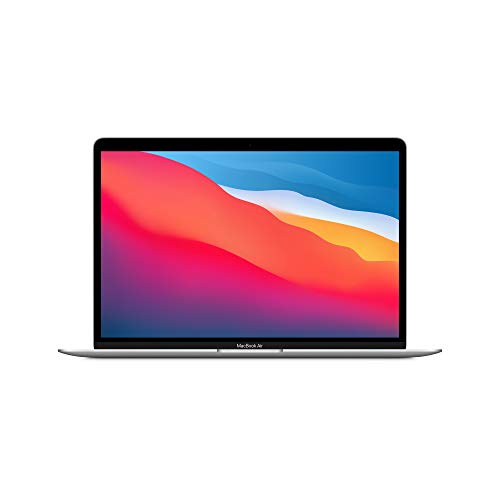
- All-Day Battery Life – Go longer than ever with up to 18 hours of battery life.
- Powerful Performance – Take on everything from professional-quality editing to action-packed gaming with ease. The Apple M1 chip with an 8-core CPU delivers up to 3.5x faster performance than the previous generation while using way less power.
- Superfast Memory – 8GB of unified memory makes your entire system speedy and responsive. That way it can support tasks like memory-hogging multitab browsing and opening a huge graphic file quickly and easily.
- Stunning Display – With a 13.3 inch Retina display, images come alive with new levels of realism. Text is sharp and clear, and colors are more vibrant.
- Why Mac – Easy to learn. Easy to set up. Astoundingly powerful. Intuitive. Packed with apps to use right out of the box. Mac is designed to let you work, play, and create like never before.
Laptops Options for Windows Users
My Best Pick for Business Use
Lenovo ThinkPad Laptop – Best overall
There are a few laptops that are best for running virtual machines. The Lenovo ThinkPad is a great option if you are looking for a laptop that is best for business.

- 11th Generation Intel Core i7-11800H Processor (2.30 GHz, up to 4.60 GHz with Turbo Boost, 8 Cores, 16 Threads, 24 MB Cache)
- 17.3 inch FHD (1920 x 1080) IPS, anti-glare, 300 nits
- USB-A 3.2 Gen 1 (always on), USB-A 3.2 Gen 1, Intel Wi-Fi 6 AX201 802.11AX (2 x 2) & Bluetooth 5.1 with vPro, HDMI 2.1/2.0, Headphone / mic combo, Fingerprint Reader, 2 x USB-C Thunderbolt 4, USB-C, SD card reader, Kensington lock slot
- 32G DDR4 RAM 1TB Nvme M.2 SSD
- Windows 10 Pro, Free upgrade to Windows 11 when available.
Runner-up for Business Use
Dell XPS Laptop – 1st Runner-up
The best Dell XPS laptop to run virtual machines has the Intel Core i7 processor, and the NVIDIA dedicated video card.

- Powerful Creation: Run creative apps smoother and faster with powerful Intel Core Ultra processors with a dedicated engine to help unlock AI possibilities on the PC.
- Variable Refresh Rate: Moving content is smoother with up to 120Hz variable refresh rate, which also improves battery life when viewing static images or web pages.
- Sleek, Modern Design: Crafted with machined aluminum and Gorilla Glass 3 to deliver a strong, lightweight laptop.
- Innovative Interiors: Switch tasks effortlessly with modern, easy-to-use interiors that deliver a clean, harmonious look.
- Windows Copilot: Your own personal AI assistant built right in to do the heavy-lifting so you can do the extraordinary. With Copilot in Windows get real answers, inspiration, and solutions for your questions, projects, and to-do-list.* *Timing of feature delivery varies by device. Feature availability varies by market. Requires Microsoft account sign in.
HP Envy Laptop – 2nd Runner-up – Good Choice
This is a good laptop for a smaller budget.
- Touch Screen Type : Capacitive
- AS BIG AS YOUR IMAGINATION – The powerful combination of an Intel Core processor, ample memory, and plenty of storage lets your creative vision come to life faster than ever before.
- FULL HD TOUCHSCREEN – Control your entertainment right from the screen and get crystal-clear quality with 178° wide-viewing angles (1).
- THE PERFECT PERFORMANCE COMBO – Experience new levels of power and the most stunning visuals thanks to the 11th Generation Intel Core i7-1165G7 processor and Intel Iris Xe graphics (2) (3).
- AMPLE MEMORY – Multitasking is a breeze as 12 GB of RAM gives your touchscreen laptop higher bandwidth and greater efficiency.
Windows Users Home Uses
The best laptops to run virtual machines have the Intel Core i7 processor and the NVIDIA dedicated video card.
Our Best Pick
ASUS VivoBook Laptop – Best overall
For the best ASUS laptops for virtualization projects, you need to consider these three aspects: performance, lightweight and screen quality. The ASUS laptop with excellent performance is the ASUS VivoBook.
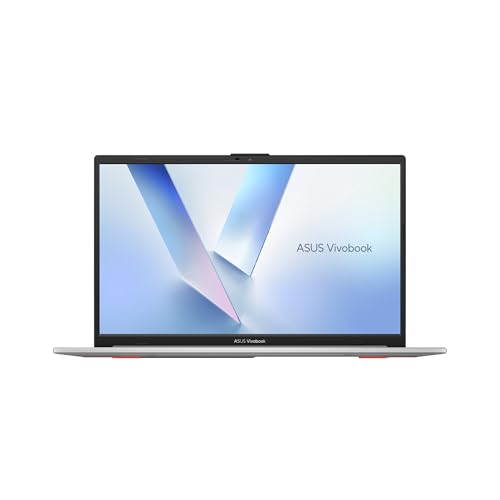
- Stunning Full HD Display: 15.6" Full HD screen with an 84% screen-to-body ratio brings your videos, games, and work to life with vibrant detail.
- Power to Get Things Done: AMD Ryzen 5 40 processor, 8GB RAM, and 512GB storage let you breeze through multitasking, productivity, and everyday tasks.
- Comfortable Typing Every Time: ASUS ErgoSense keyboard is designed for comfort and precision, making long typing sessions effortless.
- Share and Collaborate Easily: Precision-engineered 180° lay-flat hinge makes sharing your screen or working with others simple.
- Stay Charged on the Go: 42Wh battery with fast charging reaches 60% in just 49 minutes so you can stay productive wherever you are.
Runner-up Home Use
Dell Inspiron Laptop – 1st Runner-up – Better Choice
The Dell Inspiron is the best general purpose laptop for doing just about anything.
HP Pavilion Laptop – 2nd Runner-up – Good Choice
The HP Pavilion is a very good laptop for general purpose use.

- Efficient Performance for Everyday Computing Powered by Intel N150 processor (4-core, 4-thread, up to 3.6GHz with Intel Turbo Boost Technology, 6MB L3 cache) paired with 4GB LPDDR5-4800 RAM and 128GB UFS storage. Handle everyday tasks including web browsing, document editing, email, video streaming, and light productivity applications with responsive performance. Perfect for students, home users, remote learners, and anyone seeking an affordable, reliable laptop for daily computing needs without compromising on essential features and modern connectivity.
- Portable 14-Inch HD Display with Micro-Edge Design Work and learn comfortably on the 14-inch diagonal HD (1366 x 768) anti-glare display delivering 250 nits brightness and 62.5% sRGB color accuracy. The micro-edge bezel design provides a 79% screen-to-body ratio for an immersive viewing experience with minimal distractions. Anti-glare coating reduces eye strain during extended use, making it ideal for online classes, video conferences, content consumption, and productivity tasks. Compact form factor balances screen size with portability for on-the-go computing.
- Modern Connectivity with Wi-Fi 6 and Bluetooth 5.4 Stay connected with the latest Wi-Fi 6 (2x2) wireless technology delivering faster speeds, improved reliability, and better performance in crowded networks compared to older Wi-Fi standards. Bluetooth 5.4 enables seamless pairing with wireless peripherals including mice, keyboards, headphones, and speakers. Comprehensive port selection includes 1x USB Type-C 10Gbps (DisplayPort 1.2), 2x USB Type-A 5Gbps, HDMI 1.4b for external displays, headphone/microphone combo jack, and multi-format SD card reader for easy file transfers and peripheral connectivity.
- All-Day Productivity with Long Battery Life Enjoy up to 11 hours of video playback, 7.5 hours of mixed usage, or 7.5 hours of wireless streaming on a single charge, keeping you productive throughout your workday or school day without constantly searching for outlets. The 45W AC power adapter provides efficient charging when needed. HP True Vision 720p HD camera with temporal noise reduction and integrated dual-array digital microphones deliver clear video calls and online meetings. Dual speakers provide quality audio for entertainment and communication.
- Sleek Design with Windows 11 Home and Microsoft 365 Premium Pale Rose Gold finish with matte top cover and keyboard deck featuring vertical brushing pattern combines professional aesthetics with durability. Full-size Natural Silver keyboard enables comfortable typing. Weighing just 3.24 lbs with compact dimensions (12.76" x 8.86" x 0.71"), this ultra-portable laptop fits easily in backpacks and bags. Pre-installed with Windows 11 Home and includes 1-year Microsoft 365 Personal subscription. Microsoft Copilot integration provides AI-powered assistance accessible with dedicated Copilot key. AI Noise Reduction filters background noise for clearer video conferences.
Best Practices for Virtual Machines Lab PCs
This list of best practices for running virtual machines on a desktop or laptop comes from years of experience in the field of virtualization technology.
I’ve built and supported 1000s of server virtual machines on power server hardware designed for virtualization and small virtual machine labs on desktops and laptops. And in every flavor and version of an operating system for Windows, Linux, and Mac.
Best practices to consider when deciding which PC configuration you get.
1. Remember, having more physical memory is best for performance. A VM reading from memory is always faster than reading from a disk, even from fast SSDs. When you shut off your machine, everything stored in memory (RAM) will be wiped clean so always save your work.
When you have a good amount of RAM, you don’t risk starving your main OS of VMs for memory.
2. The system also needs to have a couple of USB ports and an HDMI port so you can connect other devices to them. And It should also be able to support a lot of SSD storage upgrades via NVMe or ATA connectors.
3. The processor should have a lot of fast CPU cores. BTW, I’m not going to spend much time on whether you should get a system with an AMD CPU or an Intel CPU. I’ll leave that up to your preference – they both work well when combined with SSD storage and lots of memory.
For me, it all comes down to how you plan to use the virtual machines.
The best practice is CPUs with the most cores, highest GHz, lots of memory, and SSD storage.
Related guide: Best NUC or Mini PC for Virtualization
People also ask:
What is a Virtual Machine?
A virtual machine is best described as a virtual copy of a physical system. They run on a hypervisor, i.e. virtual machine software that emulates physical hardware.
A PC running a hypervisor can support multiple virtual machine copies of the hardware with a different OS running on each copy. The performance of your VMs greatly depends on the hardware configuration of the PC.
The benefit of running virtual machine software is it allows you to run another operating system that was not installed on your physical computer alongside your main operating system i.e. Windows, Linus, MacOS.
The best PC for virtual machines is defined as one with lots of virtual CPUs, RAM memory, and SSD storage space.
Do you need a good PC to run virtual machine software?
Do you really need the best PC to run virtual machines? It all depends on your application. If you are just trying to run a simple Windows or Linux app, you can get away with a used or cheap PC with less powerful CPUs and HDD storage. But don’t skimp on memory.
Is CPU or RAM more important for virtualization?
For best performance, a balance between CPU and memory is best. Memory is cheap, don’t skimp on it. But a good rule of thumb is to keep your physical host physical. This means only allocating one-half of your total RAM to VMs.
Memory is more of a factor for VMs running large applications and CPU is more of a factor for quickly processing transactions.
Both affect performance when there isn’t enough.
What is better VMware Workstation or Oracle VirtualBox?
Both VirtualBox and Workstation work. VirtualBox is free (open source), whereas VMware Workstation will cost you.
Another alternative of virtual machine software I like to use is Hyper-V. If you have Windows 10 Pro, Hyper-V comes built-in.
If you’re running Linux, KVM is another free (open source) option built into most Linux distributions.
Here’s where you can learn more about virtual machine software alternatives, including software for running Windows on Apple’s OS X.
What is the best laptop for virtual machines?
Check out the list above, but as a quick rule of thumb, the best laptops for virtual machines have a minimum of a Core i7 CPU. They’ll be quad-core or more and have lots of fast RAM (16 – 32GB) that you can throw at your VMs.
They also have a second slot for dedicated storage via NVMe or ATA connection.
What if I want more power for my lab?
If none of the powerhouses shown above is enough for you, then here’s a VMinstall guide about new and refurbished server hardware host virtualization from all the top server brands.
What is the best laptop for IT students?
When it comes to laptops for IT students, there are a few key factors to look for. First, the laptop should have a good amount of RAM and storage space in order to run complex software programs. Second, it should have a good graphics card to allow for graphics-intensive tasks such as 3D modeling. And finally, it should be a durable laptop that can withstand the wear and tear of daily use.
With those factors in mind, here are our picks for the best laptops for IT students:
- Apple MacBook Air – Best Choice
- Dell XPS Laptop – Best overall for Windows
- Dell Inspiron Laptop– Next Best for Windows
Will these powerful PCs also work for a small business server?
Yes, you could make them work with changes to security and a good backup system. For better hardware, you could also consider a powerful built tower server that is specially designed for SMB.
Time to Pick a PC for Your Virtual Machines
Important: Make sure you have plenty of room for growth.
As we wrap up, I want to state one last time that your new PC for hosting virtual machines needs to be expandable.
Later on, I guarantee you will want to add upgraded WIFI adapters, network cards, graphics cards, SSDs, NVMe storage, CPUs, and USB devices.
Planning ahead will make your virtual machine lab more future-proof, especially if you are building virtual machines for business use cases that rely on keeping up with new software requirements.
The best desktop or laptop for running virtual machines can keep expanding if needed before you need to replace it with a new bigger system.
Look, these suggestions all have their Pros/Cons depending on what you plan to do with your virtual machine overall, but they are all good for building a virtual machine lab.
In conclusion, the best PC for virtual machines is waiting for you! Now it’s time to check out the reviews, compare the specs, and pick the winner…
Let us know in the comments which brand and model you decide to get and why.
VMinstall.com is a participant in the Amazon Services LLC Associates Program, an affiliate advertising program designed to provide a means for sites to earn advertising fees by advertising and linking to Amazon.com, Amazon.co.uk, Amazon.ca, and other Amazon stores worldwide. *Best Sellers last updated on 2026-10-23 at 08:55.

